Yoodley is reader-supported. When you buy through links on our site, we may earn an affiliate commission.
You download a long report, course handout, or instruction manual, open it on your phone, and find everything except a play button. If you are trying to work out how to read a PDF aloud on Android, the confusing part is that Android has several speech tools, but they do not all handle PDF files in the same way.
For a short document with selectable text, Android’s accessibility features may be enough. For a long PDF, a scan, or anything you want to hear while walking or commuting, a dedicated PDF text-to-speech app is usually less fiddly. The quickest route is to identify the type of PDF first, then choose the method that matches it.
Can Android read a PDF aloud without another app?
Sometimes. Select to Speak, part of the Android Accessibility Suite, can pronounce text that the phone is able to identify on screen. On many devices, you can enable it by opening Settings, choosing Accessibility, and turning on Select to Speak or its shortcut. The exact wording varies between Samsung, Pixel, and other Android phones.
Once the shortcut is active, open the PDF, trigger Select to Speak, and select the visible text. This is useful when you only need to hear a paragraph, check the wording of a page, or rest your eyes for a few minutes.
Google’s separate Reading mode also has read-aloud controls, but it is not a dependable PDF solution: Google’s current support guidance says Reading mode does not support PDF files. Select to Speak can still work, provided the PDF viewer exposes readable text. If it stays silent or starts announcing toolbar buttons, the problem may be the viewer or the document rather than the phone’s speaker.
Check what kind of PDF you have
Before changing more settings, press and hold one sentence in the document. If you can select individual words and copy them, the PDF probably contains a real text layer. Speech software has a reasonable chance of following it.
If the entire page behaves like one photograph, it is probably a scanned PDF. A reading app must use optical character recognition, or OCR, before it can speak the words. Clean, straight scans with strong contrast tend to work much better than faded photocopies, handwriting, decorative fonts, or pages photographed at an angle.
Layout matters too. A two-column research paper may contain perfectly selectable text but still be read in the wrong order. Tables, forms, footnotes, and equations can be equally awkward when flattened into one stream of speech. That ten-second selection test tells you what to expect before you spend time installing or reconfiguring anything.
How to read a whole PDF aloud on Android
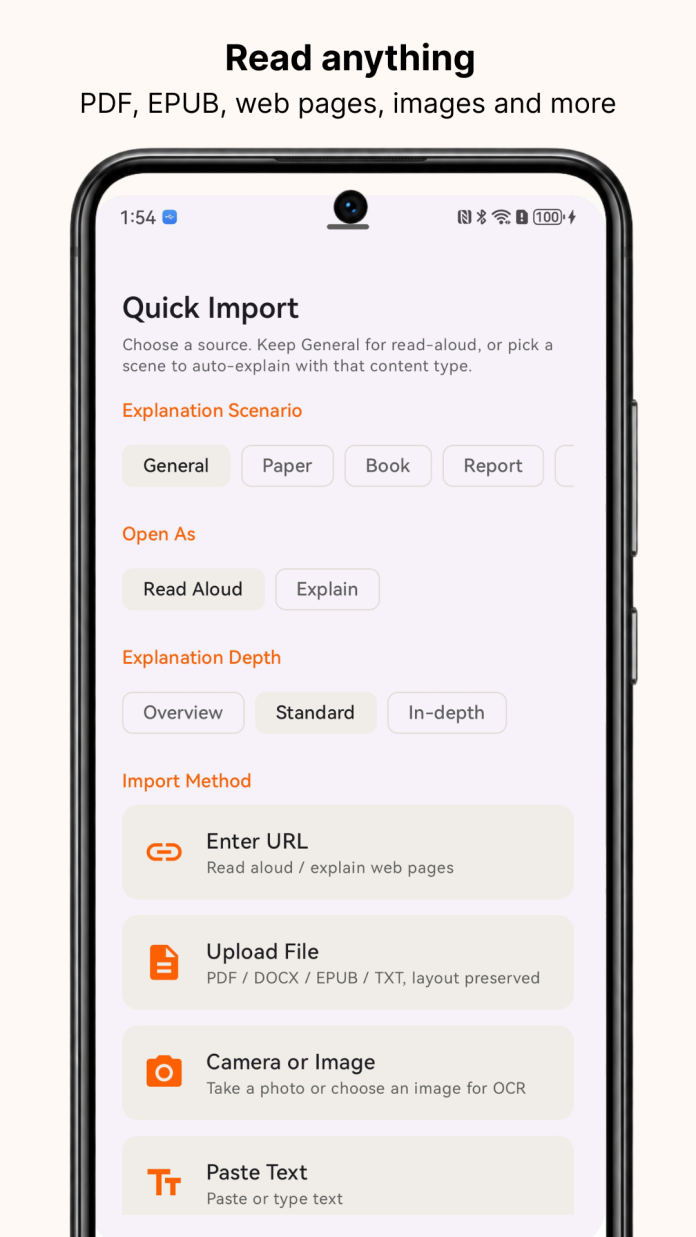
For continuous playback, synchronized highlighting, and file management in one place, import the document into a reader built for spoken playback. The steps below use CastReader on Android.
Step 1: Save a complete copy of the PDF
Download the file and note where Android stores it, usually the Downloads folder. If the document is still an email preview, save a local copy first. A zero-byte or half-finished download may appear in the file picker but fail when an app tries to open it.
Keep passwords and access controls intact. A reading app does not grant permission to open material you do not own or have authorization to use.
Step 2: Install the Android reader
You can download CastReader for Android from Google Play. Use the official store listing rather than an APK from an unfamiliar download site, particularly if you plan to open work or school documents.
Open the app once and complete the initial setup. CastReader can import PDFs as well as several other document types, but for this job choose the file route rather than copying pages into a text box.
Step 3: Import the PDF
Tap the import control, choose Upload File, and use Android’s file picker to locate the PDF. Depending on the phone, it may appear under Recent, Downloads, or the folder where your browser saves files.
Select the document and let it finish processing. A short text-based PDF should be quick. A large file or a set of scanned pages can take longer because the app has more content to identify.
Step 4: Test the first page before going hands-free
Open the imported document and start playback. Watch the synchronized highlight for the first minute. It should move through the same sentence you hear, which makes names, figures, and unfamiliar terms easier to check without losing your place.
Do not put the phone in your pocket yet. First confirm that headings and paragraphs are being read in the expected order and that the selected voice matches the document’s language.
Step 5: Set a comfortable voice and speed
Begin close to normal conversational speed. A technical report at 2x may feel efficient for thirty seconds and then become impossible to follow. Increase the pace only after the first page sounds right.
If a proper name or specialist term is unclear, slow down or try another available voice. Background playback can make a long report easier to finish, but only after the initial quality check shows that the document has been interpreted correctly.
What to do when a scanned PDF sounds wrong
OCR does not recover the original text; it estimates the characters shown in the image. If the app keeps confusing letters or skipping lines, look for a direct digital copy of the document. When that is not available, rescan the page in even light, keep the camera parallel to the paper, and crop away shadows and unnecessary borders.
Test one page before processing a large file again. Handwritten notes, mathematical expressions, and tightly packed tables may never make comfortable listening material. Audio can still help with the surrounding paragraphs, but important figures and formulas should be checked visually.
What this PDF text-to-speech method cannot fix
CastReader does not remove passwords, bypass DRM, unlock purchases, or override a publisher’s access restrictions. A file that is not available to your account will not become available merely because a reader is installed.
Complex layouts remain a weak point for every PDF-to-speech workflow. Sidebars may interrupt the main sentence, two columns may be joined in the wrong order, and a chart cannot be understood simply by speaking the labels. Natural voices and document processing may also depend on an internet connection, while current free-use allowances and features can change over time.
Treat audio as an aid, not the final authority, for contracts, medical instructions, financial figures, and academic citations. Verify critical details against the page. Before importing confidential company or student material, review the current privacy disclosure and the rules of the organization that owns the document.
Quick fixes when the PDF will not play
If the file does not appear, open Android’s Files app and make sure the download completed. If playback is silent, raise the media volume and check whether audio is being routed to Bluetooth headphones in another room.
If plain paragraphs work but a table or two-column page does not, the layout is probably the culprit. If every page behaves like an image, try a cleaner source or an OCR-capable import. When one PDF fails and another works, that is useful evidence: the device voice is functioning, so the investigation should move back to the file.
The simplest way to make Android read a PDF aloud
The right way to read a PDF aloud on Android depends on what is inside the file. Select to Speak is a sensible free option for a short document with accessible text. A dedicated Android PDF reader with voice is more practical when you need continuous playback, synchronized highlighting, or help recognizing a scan.
Whichever route you choose, test one page first. If the headings, paragraphs, and numbers sound right, the PDF can finally leave the screen and become something you finish while walking, commuting, or simply giving your eyes a break.